Direct answer: The WordPress security checklist for small businesses in 2026 covers 15 essential steps across five areas: keeping core, plugins, and themes updated weekly; securing admin access with strong passwords and two-factor authentication; running daily automated backups stored off-site; scanning for malware with a tool like Sucuri; and enforcing HTTPS sitewide. Neglecting any one of these is how small business WordPress sites get hacked — and recovery costs average $2,500 or more.
I’ve been building and maintaining WordPress websites for small businesses since 2010. In that time, I’ve seen exactly what happens when security gets treated as an afterthought: the 3 a.m. panic call, the Google blacklist warning, the client who lost three years of customer data because their backup hadn’t actually been running.
I’ve also seen what happens when sites are properly maintained. Nothing happens. That’s the point.
This checklist is what our team runs through on every site we manage. It’s also what I wish every small business owner would read before something goes wrong — because the cost of prevention is a fraction of the cost of recovery.
Related reading:
→ WordPress Hosting & Maintenance Plans
→ What Is WordPress Website Maintenance and Why Does It Matter?
→ WordPress Web Design
Why WordPress Security Matters More in 2026
WordPress powers over 40% of all websites on the internet. That reach makes it the #1 target for automated hacking scripts that scan the web constantly, looking for sites running outdated plugins, weak passwords, or known vulnerabilities.
Your small business site is not too small to target. In fact, small businesses are disproportionately targeted precisely because they’re less likely to have security protocols in place. Hackers aren’t always after your data — sometimes they want your server resources to send spam, your domain reputation to host phishing pages, or your Google rankings to redirect to malicious sites.
The hard truth: 43% of cyberattacks target small businesses. The average cost to recover a hacked WordPress site — including cleanup, lost traffic, and developer time — runs $2,500 to $8,000+. A monthly maintenance plan costs a fraction of that.
The good news is that most WordPress hacks are entirely preventable. The vulnerability that let a hacker in is almost always something on this checklist that hadn’t been done.
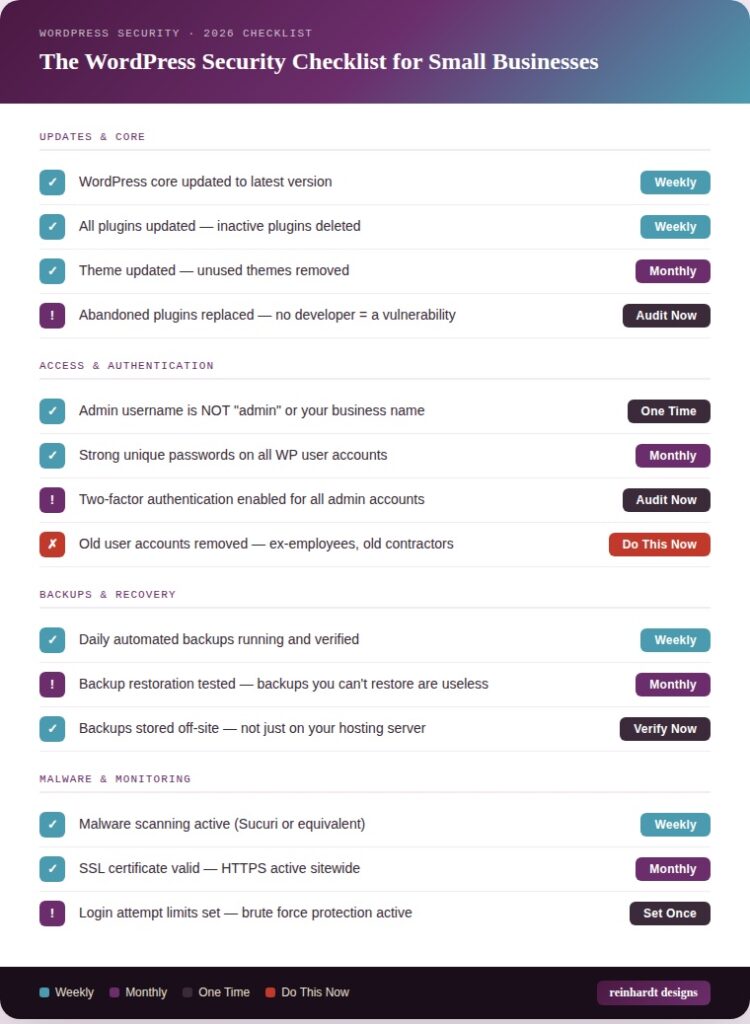
The WordPress Security Checklist: 15 Steps for 2026
Organized into five areas. Each step includes a recommended frequency so you know what needs to happen when.
Area 1: Updates — Your First Line of Defense
1. Update WordPress core WEEKLY
WordPress releases security patches regularly. Running an outdated version means you’re exposed to vulnerabilities that are publicly documented and actively exploited. Turn on automatic minor updates at minimum — and check for major releases monthly.
2. Update all plugins WEEKLY
Plugins are the most common entry point for WordPress hacks. Every plugin is a potential vulnerability — especially popular ones like contact forms, WooCommerce, and page builders. Update weekly, delete any plugin you’re not actively using.
3. Update your theme MONTHLY
Themes can contain vulnerabilities too. Update your active theme monthly and delete any unused themes entirely — a default WordPress theme sitting unused is still a security liability.
4. Audit for abandoned plugins AUDIT NOW
If a plugin hasn’t been updated by its developer in over 12 months, treat it as a security risk. Check the “Last Updated” date on each plugin in your WordPress dashboard and replace anything abandoned.
Area 2: Access Control — Who’s Getting In?
5. Change the default admin username DO THIS ONCE
If your WordPress admin username is “admin,” you’ve already done half the hacker’s job for them. Automated bots try “admin” as the username on every WordPress site they hit. Create a new admin account with a unique username, then delete the “admin” account entirely.
6. Use strong, unique passwords REVIEW MONTHLY
Every WordPress user account needs a strong, unique password. Use a password manager (1Password, Bitwarden) to generate and store passwords. Never reuse a password from another service on your WordPress admin.
7. Enable two-factor authentication (2FA) SET UP NOW
2FA means even if a hacker gets your password, they can’t get into your site without your phone. Enable it for every admin and editor account using a plugin like WP 2FA or Google Authenticator. This single step stops the majority of brute force attacks.
8. Audit and remove old user accounts DO THIS NOW
Former employees, old freelancers, developers from five years ago — if they have an active WordPress account and they shouldn’t, that’s an open door. Go to Users → All Users right now and review every account. Delete anything that shouldn’t be there.
Quick win: Go to your WordPress dashboard right now → Users → All Users. If you see names you don’t recognize, or accounts with “Administrator” role that don’t need it — fix that today, not next month.
Area 3: Backups — Your Safety Net When Everything Else Fails
9. Run daily automated backups VERIFY WEEKLY
Daily backups mean the worst case scenario is losing one day of content — recoverable. Weekly backups mean potentially losing a week of orders, blog posts, or form submissions. Set up automated daily backups and verify they’re actually running. Many businesses assume backups are happening when they’re not.
10. Store backups off-site VERIFY NOW
If your backup is stored on the same server as your website and that server gets compromised, your backup is gone too. Backups must be stored in a separate location — Dropbox, Google Drive, Amazon S3, or a dedicated backup service. Our hosting plans include off-site backups as standard.
11. Test your backup restoration MONTHLY
A backup you’ve never tested is a backup you can’t trust. Once a month, verify that your backups are intact and that you could actually restore your site from them if needed.
Area 4: Malware Scanning & Monitoring
12. Run active malware scanning WEEKLY
Malware doesn’t always announce itself. A site can be serving malicious code to your visitors for weeks before you notice — and Google may blacklist you before you even know you’ve been hit. We use Sucuri on every site we manage. It scans continuously and alerts immediately when something suspicious is detected.
13. Enforce HTTPS sitewide VERIFY NOW
Your SSL certificate encrypts data between your visitor’s browser and your server. Without it, Google flags your site as “Not Secure.” Check that your SSL is valid, auto-renewing, and that all HTTP traffic redirects to HTTPS — including every page, image, and form.
14. Set login attempt limits SET ONCE
By default, WordPress allows unlimited login attempts. Bots exploit this to try thousands of username/password combinations. Add a plugin like Limit Login Attempts Reloaded to block IPs that exceed a failed login threshold.
Area 5: Hosting Environment
15. Use managed WordPress hosting EVALUATE NOW
Not all hosting is equal from a security standpoint. Managed WordPress hosting providers like SiteGround (our preferred host) include server-level security, automatic WordPress updates, daily backups, and support from teams who understand WordPress — not generic hosting staff. If you’re on shared hosting at $3.99/month, your security posture reflects that.
What a WordPress Hack Actually Costs
Here’s what the total damage typically looks like when a neglected site gets compromised:
- Emergency malware cleanup: $500–$900 (Sucuri or developer time)
- Developer hours to assess and fix damage: $750–$3,750 (5–15 hours at $150–$250/hr)
- Lost revenue while site is down: Every hour offline costs you leads
- Google blacklist recovery: Weeks to months of lost organic traffic
- SEO rankings lost: Months to recover, sometimes never fully
- Customer trust damage: Unquantifiable, often permanent
Compare that to a WordPress maintenance plan starting at $150/month — which includes weekly updates, Sucuri malware scanning, daily backups, SSL monitoring, and 30 minutes of changes monthly.
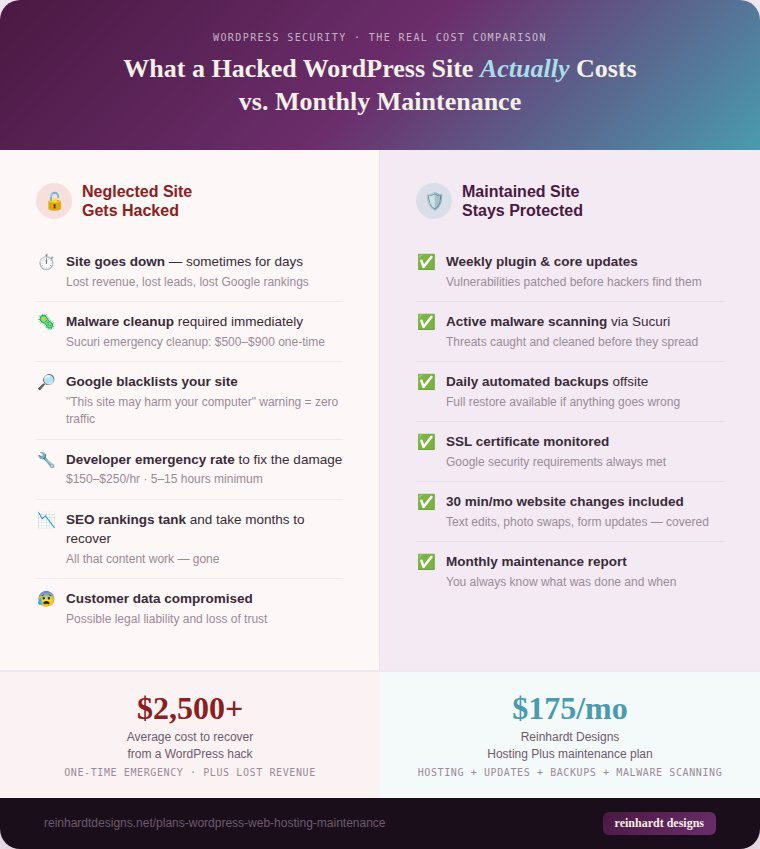
The math is simple: One hack costs more than 12–18 months of professional maintenance. The question isn’t whether you can afford maintenance — it’s whether you can afford not to have it.
Signs Your WordPress Site May Already Be Compromised
Not all hacks are immediately obvious. Watch for these warning signs:
- Your site is suddenly slow or unavailable for no clear reason
- Google Search Console shows a security warning or manual action
- You see unfamiliar admin accounts in WordPress → Users
- Visitors report seeing spam or redirect warnings
- Your hosting provider contacts you about unusual server activity
- Pages you didn’t create are appearing in Google search results for your domain
- Your contact form starts sending spam to your own inbox
If any of these are happening right now, contact us immediately. The faster a compromise is addressed, the less damage it causes.
Can You Do This Yourself?
Honestly? Some of it, yes. Changing your password, enabling 2FA, deleting old user accounts — those take 20 minutes and you should do them today regardless of anything else.
But the ongoing work — weekly updates run safely, malware scanning interpreted by someone who knows what to look for, backup systems verified and tested monthly, plugin conflicts caught before they crash your site — that’s where professional maintenance earns its cost.
We manage WordPress hosting and maintenance plans for small businesses in St. Petersburg, FL and the San Francisco Bay Area. Our plans start at $150/month. No contracts. Cancel anytime.
Want us to handle all of this for you?
We manage WordPress security, updates, backups, and monitoring for 80+ small business clients. Starting at $150/month. No contracts.
View WordPress Maintenance Plans
Frequently Asked Questions
How do I know if my WordPress site has been hacked?
Common signs include: your site redirecting to spam pages, Google Search Console showing a security warning, unfamiliar admin accounts in WordPress, visitors reporting malware warnings, or your hosting provider flagging unusual server activity. Check Google’s Safe Browsing status and run a malware scan immediately if you suspect a problem.
How often should I update WordPress plugins?
Weekly at minimum — ideally within 48–72 hours of a security-related update being released. Outdated plugins are the #1 cause of WordPress hacks. Our maintenance plans include weekly plugin, theme, and core updates.
Do I need a security plugin for WordPress?
A dedicated security plugin helps — but it’s not a substitute for the fundamentals on this checklist. Wordfence and Sucuri are the two most trusted options. That said, good hosting, regular updates, strong passwords, 2FA, and daily backups do more for your security than any plugin alone.
How much does it cost to fix a hacked WordPress site?
Emergency malware cleanup typically runs $500–$900. Developer time to assess and fix damage adds $750–$3,750 on top of that. Lost revenue and SEO impact extend the cost further. Professional monthly maintenance at $150–$175/month prevents the scenario entirely.
What is the most common way WordPress sites get hacked?
The most common cause is outdated plugins with known security vulnerabilities. Second is weak or reused passwords on admin accounts. Third is abandoned plugins that no longer receive security patches. All three are addressed directly by this checklist and by a professional WordPress maintenance plan.